
How to Register on Hamuwemu & Set Up Your Profile
Create your Hamuwemu account and build your profile in 23 quick steps — from your mobile number and OTP to photos, interests and preferences.

New to Hamuwemu? This guide walks you through creating your account and setting up your profile in 23 quick steps, with a screenshot for every step.
Part 1: Create your account
1 Open Hamuwemu
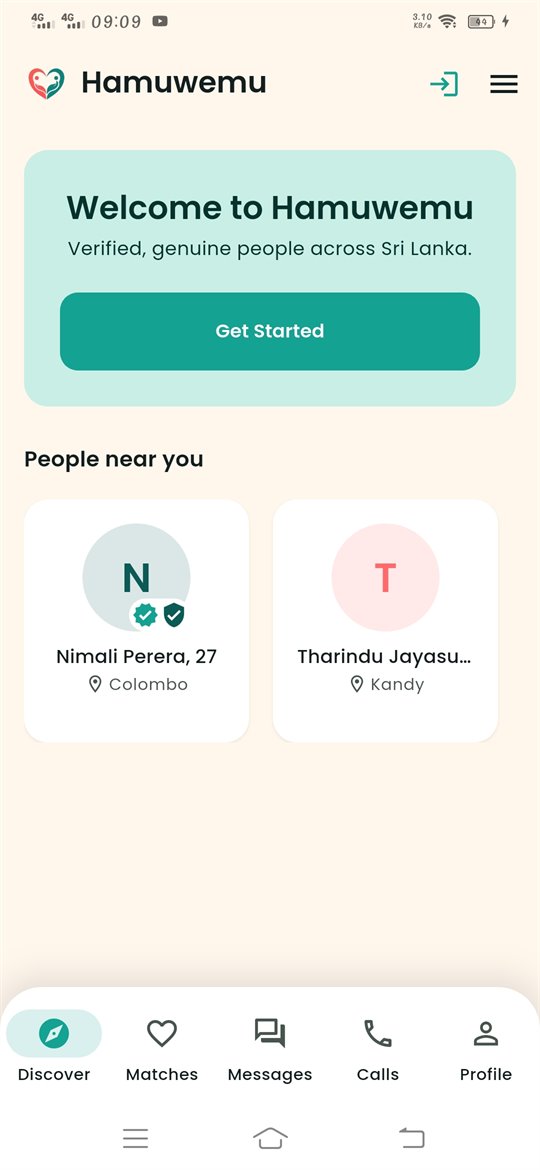
Open the app and tap Get Started.
2 Start sign-up
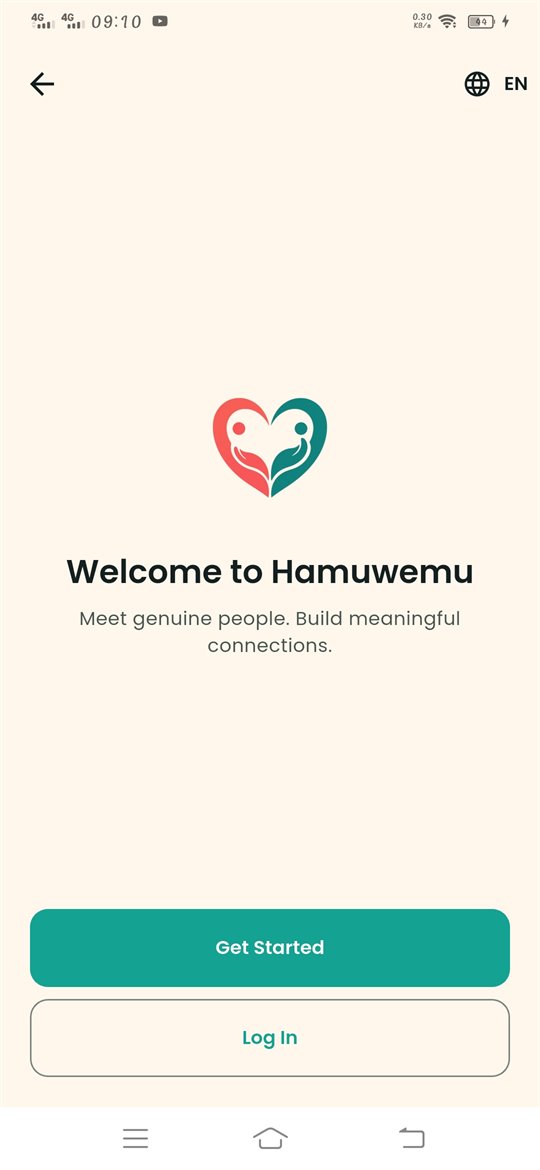
Tap Get Started to create a new account.
3 Enter your mobile number
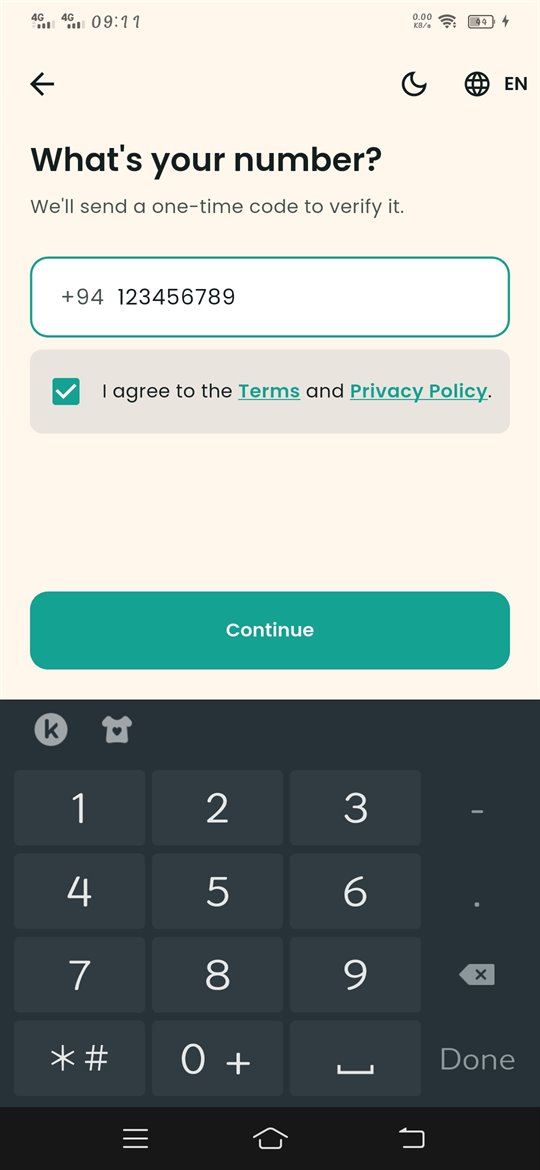
Type your number, tick “I agree” and tap Continue.
4 Verify OTP
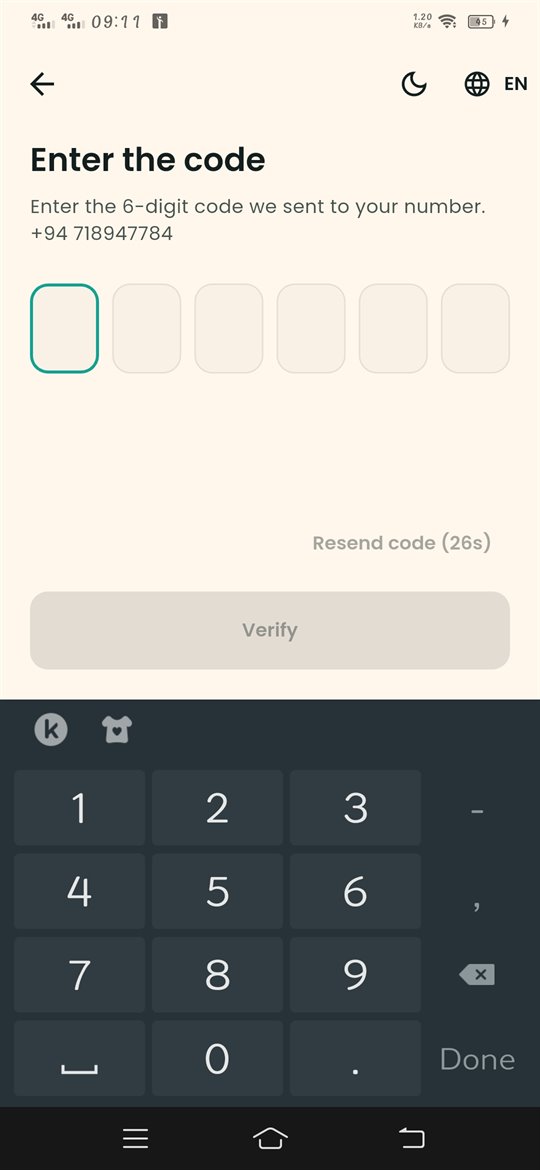
Enter the 6-digit code sent by SMS and tap Verify.
5 Add your email
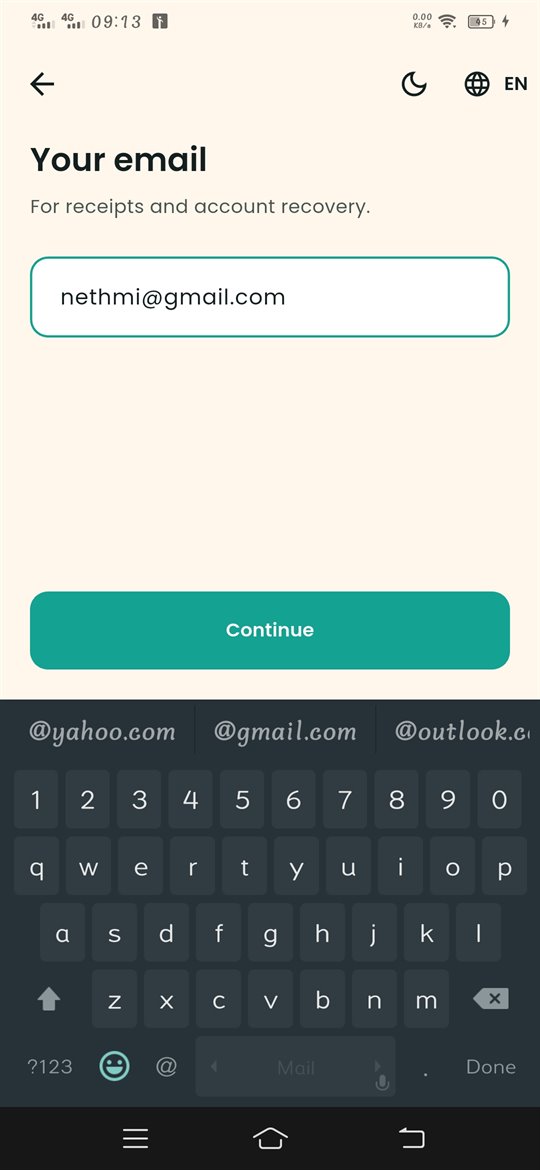
Enter your email address and tap Continue.
6 Create a password
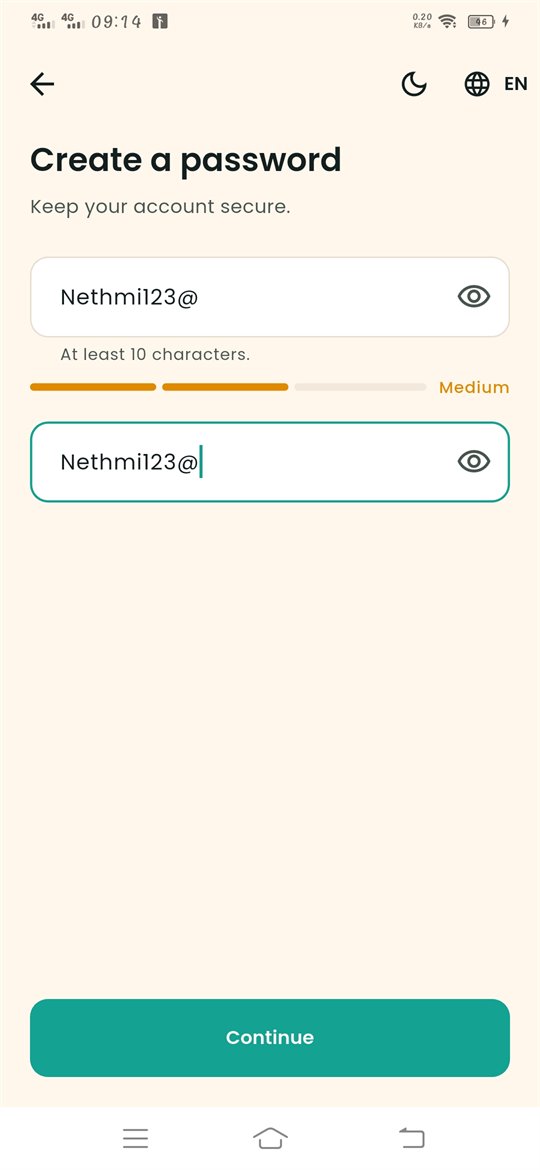
At least 10 characters. Type it twice, then tap Continue.
7 Confirm your email
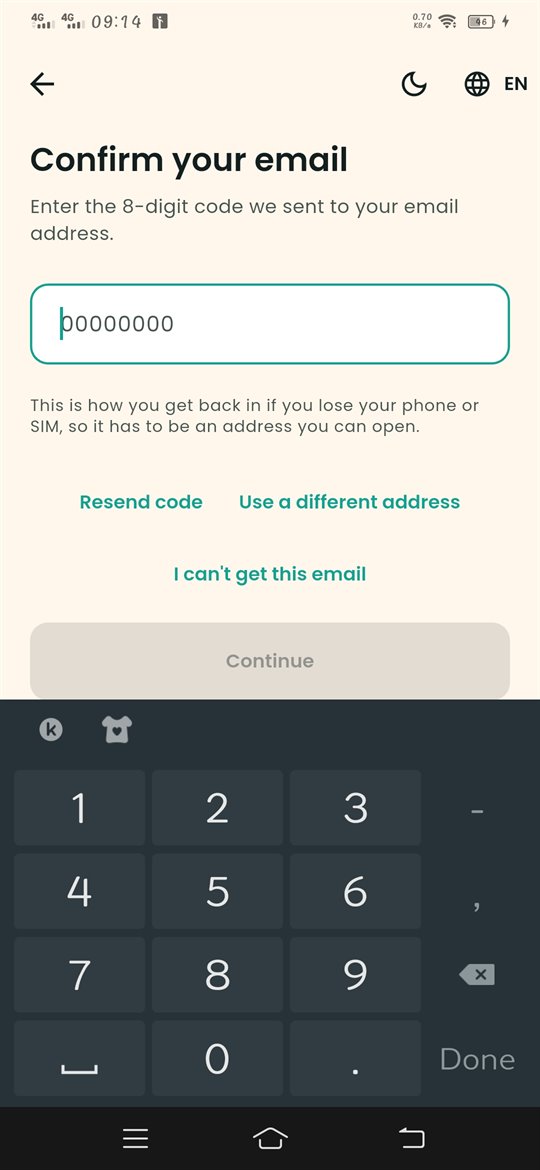
Enter the 8-digit code sent to your email and tap Continue.
8 Take a selfie
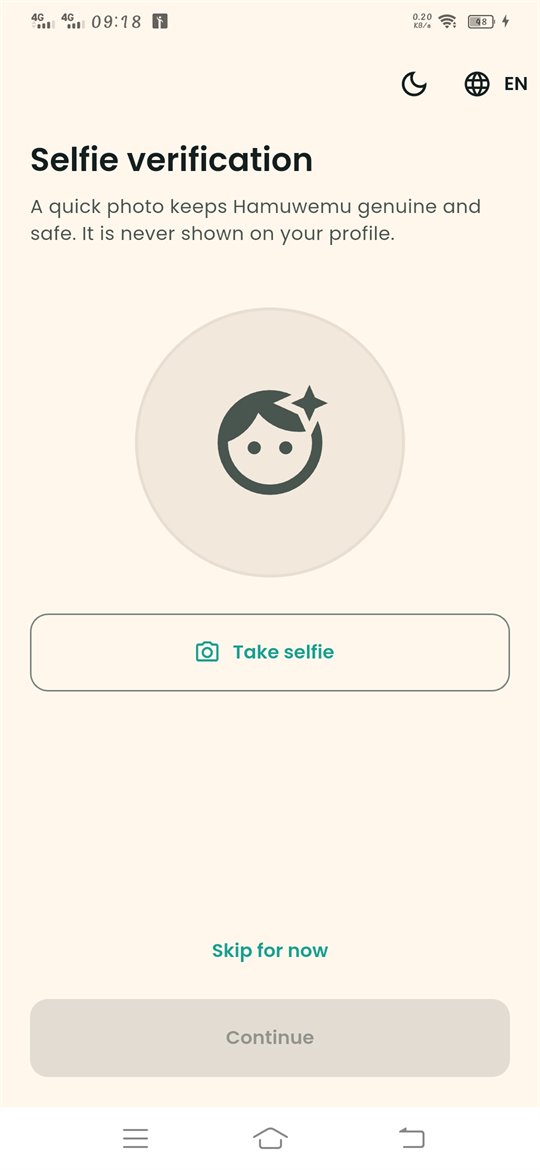
Tap Take selfie. It is only for verification and is never shown on your profile.
9 Verify your NIC (optional)
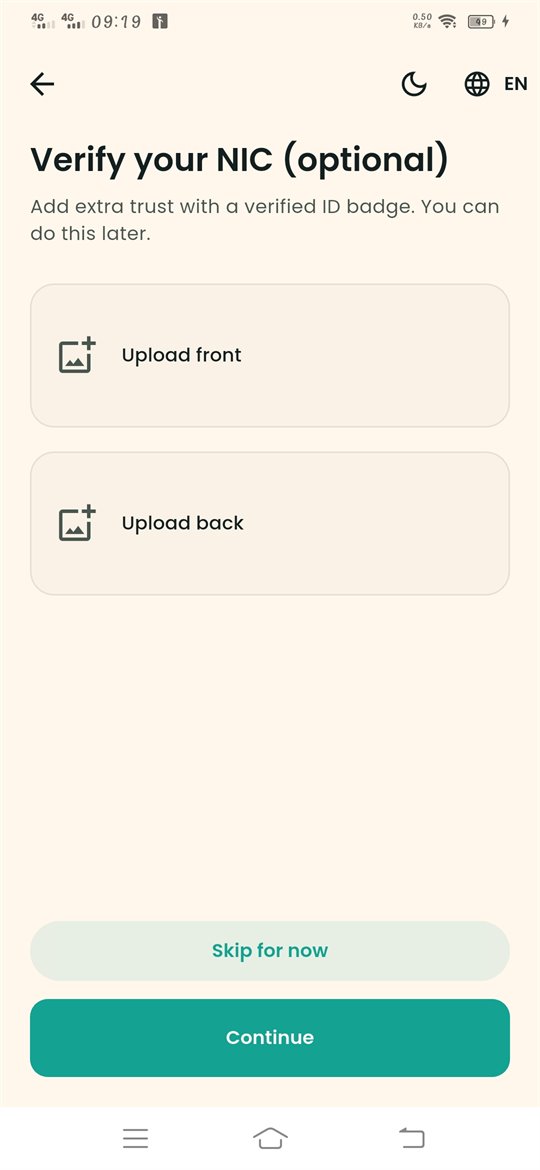
Upload the front and back of your NIC, or tap Skip for now.
10 Account created!
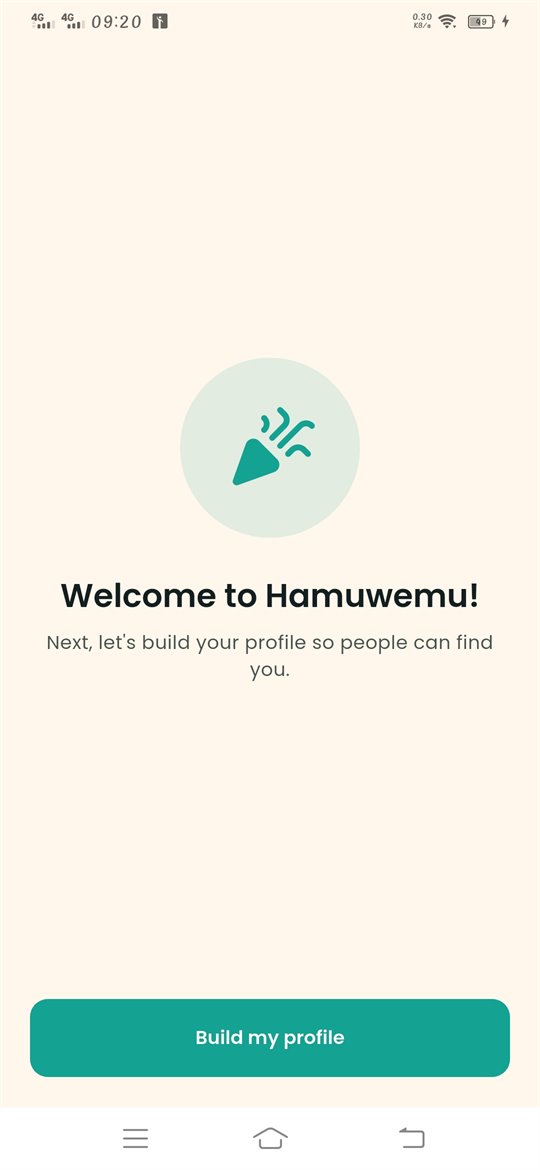
Your account is ready. Tap Build my profile.
Part 2: Build your profile
11 About you
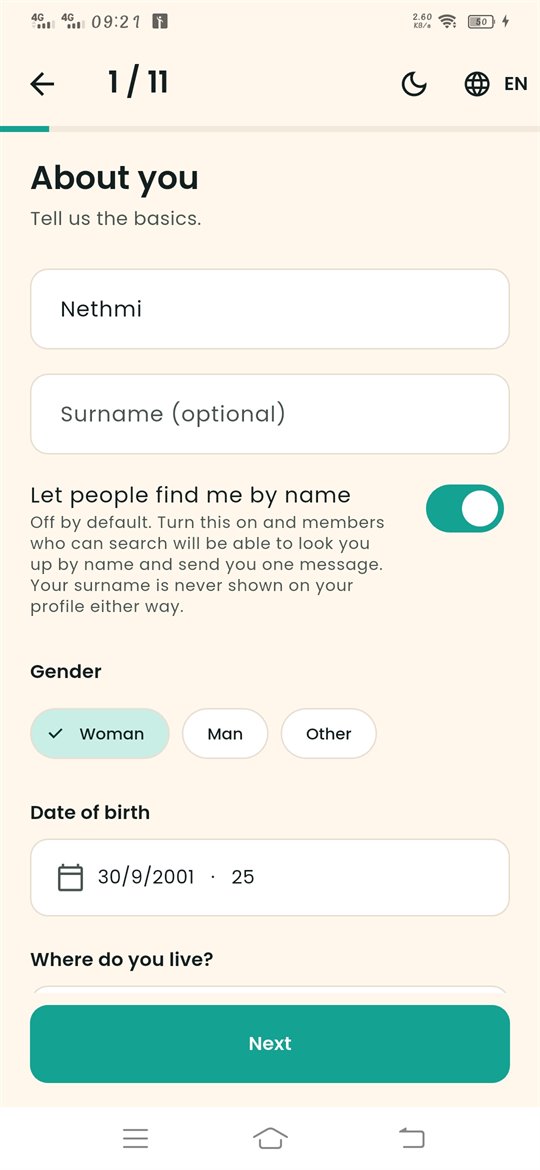
Enter your first name, gender and date of birth.
12 City & work
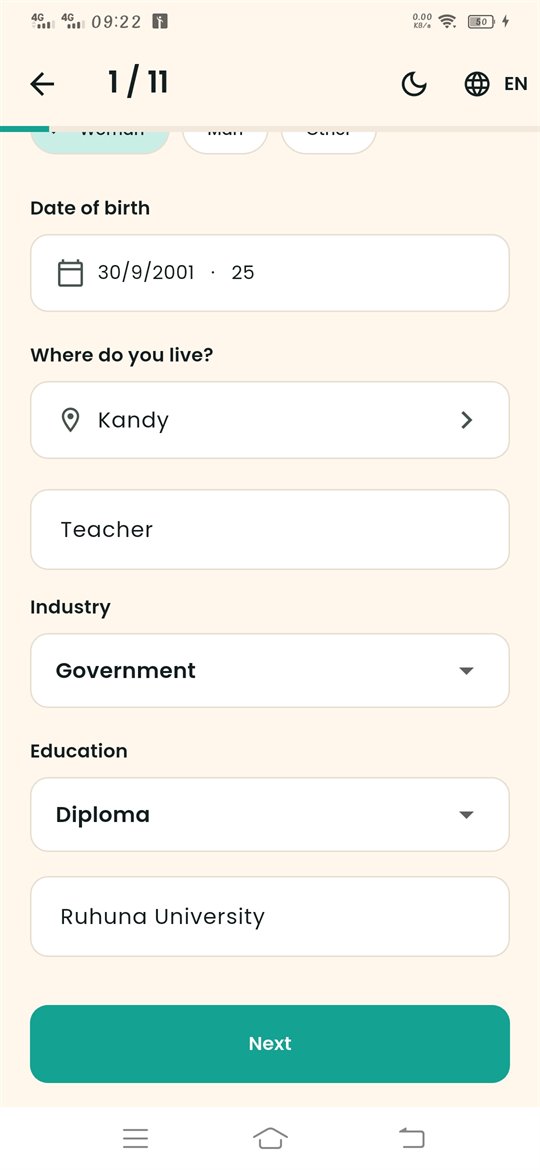
Select your city, add your job and education, then tap Next.
13 More about you (optional)
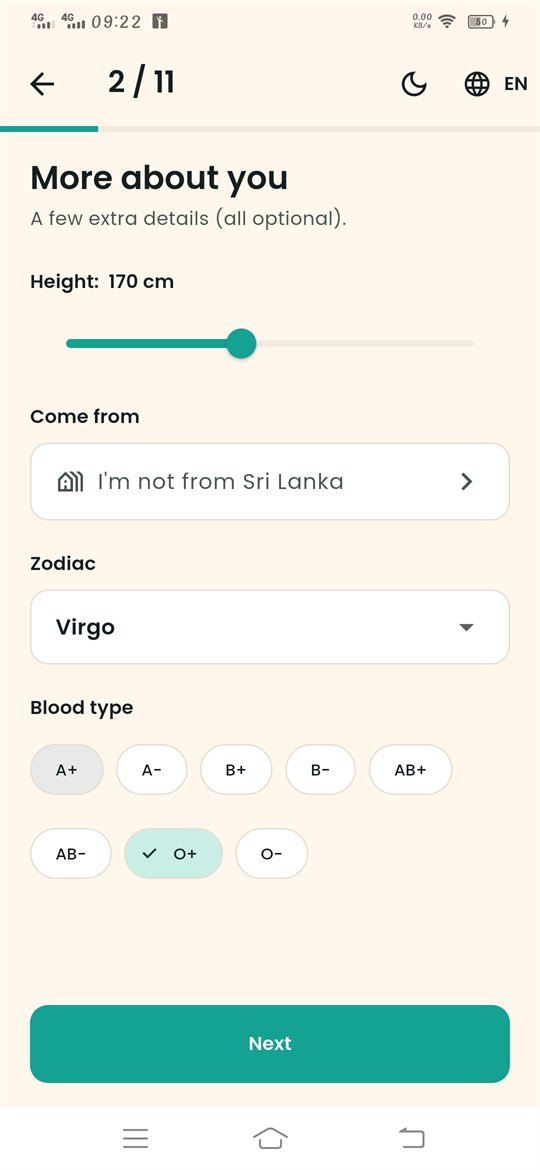
Height, hometown, zodiac and blood type. Tap Next.
14 Add photos
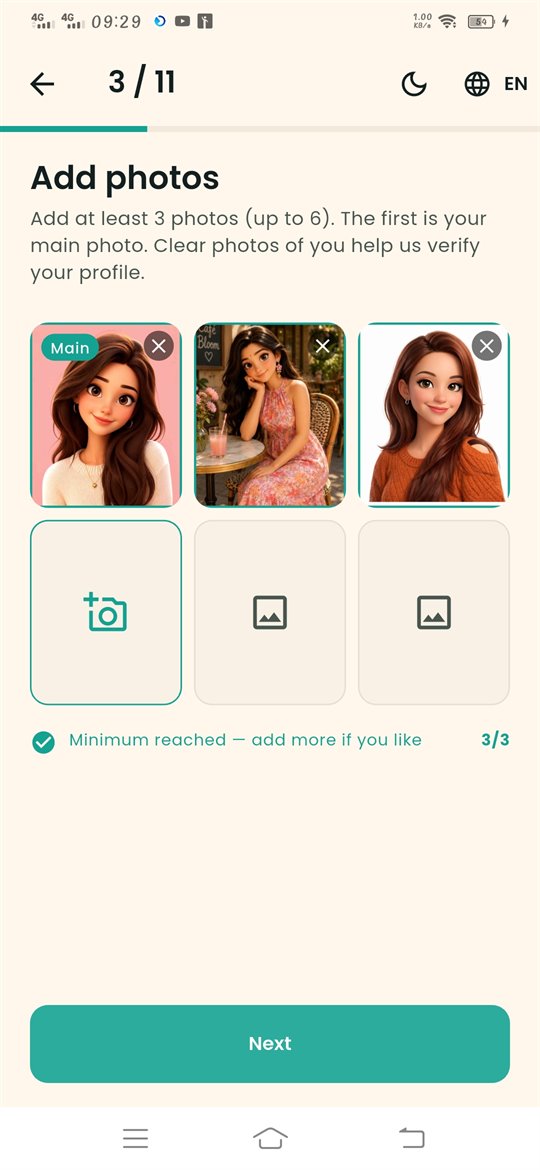
Add at least 3 clear photos. The first one is your main photo.
15 About me
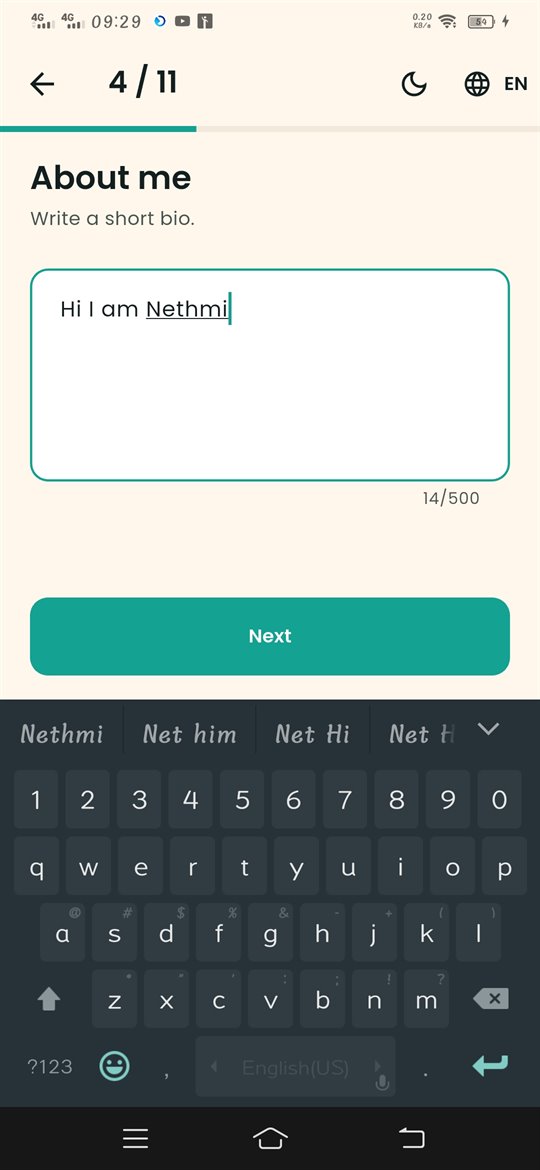
Write a short bio about yourself.
16 Languages
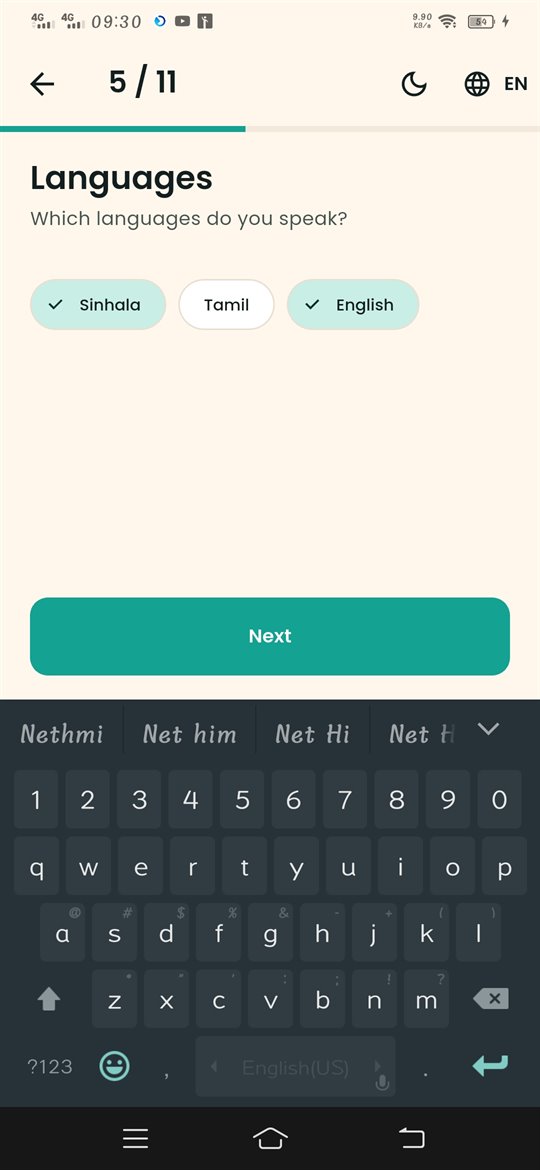
Select the languages you speak.
17 Religion (optional)
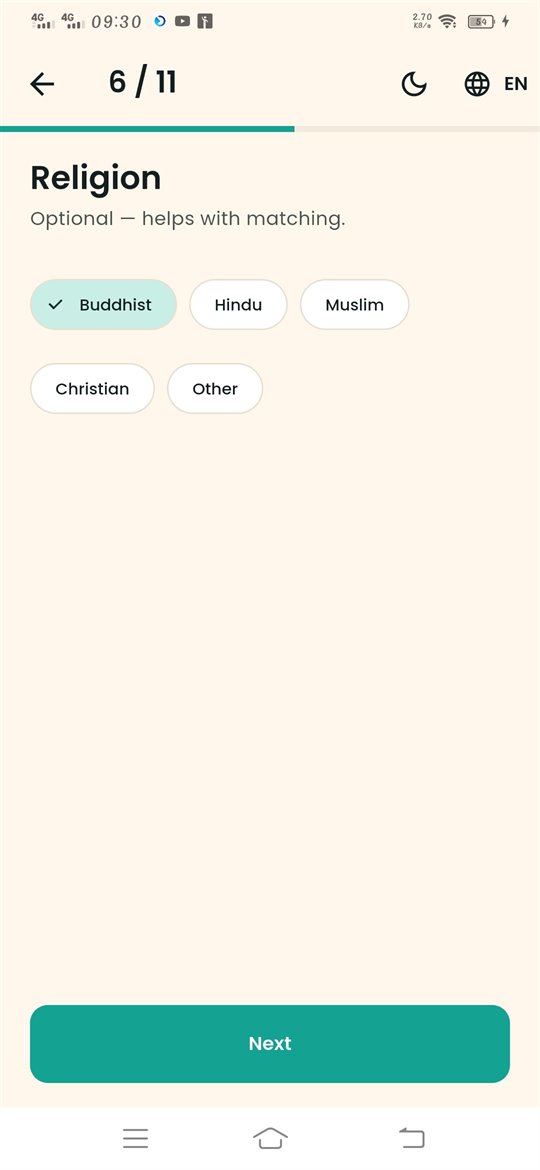
Select your religion and tap I agree, add it, or just tap Next.
18 Lifestyle
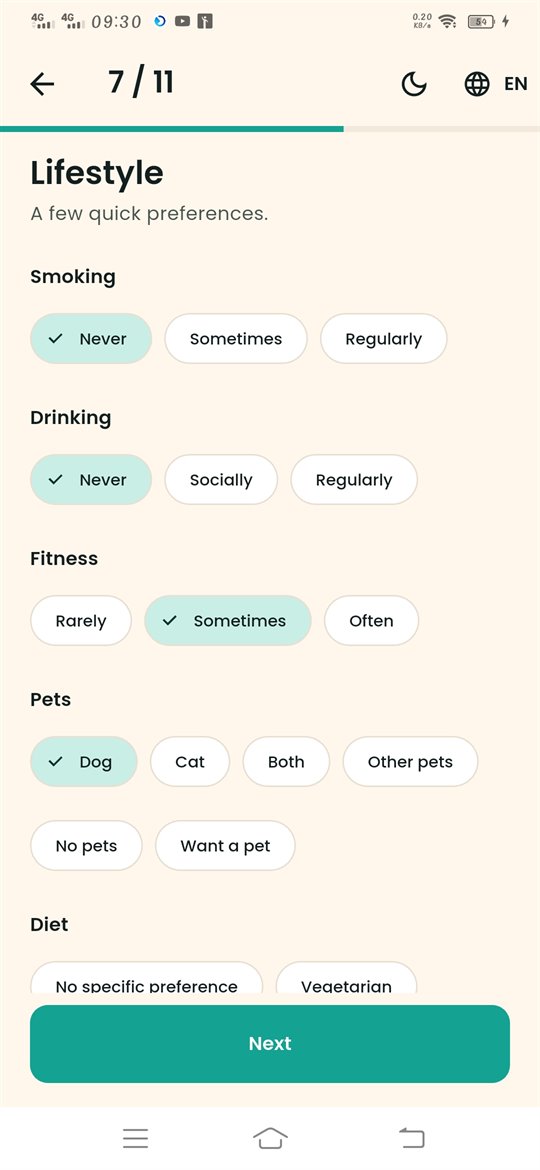
Choose your habits: smoking, drinking, fitness, pets and diet.
19 What are you looking for?
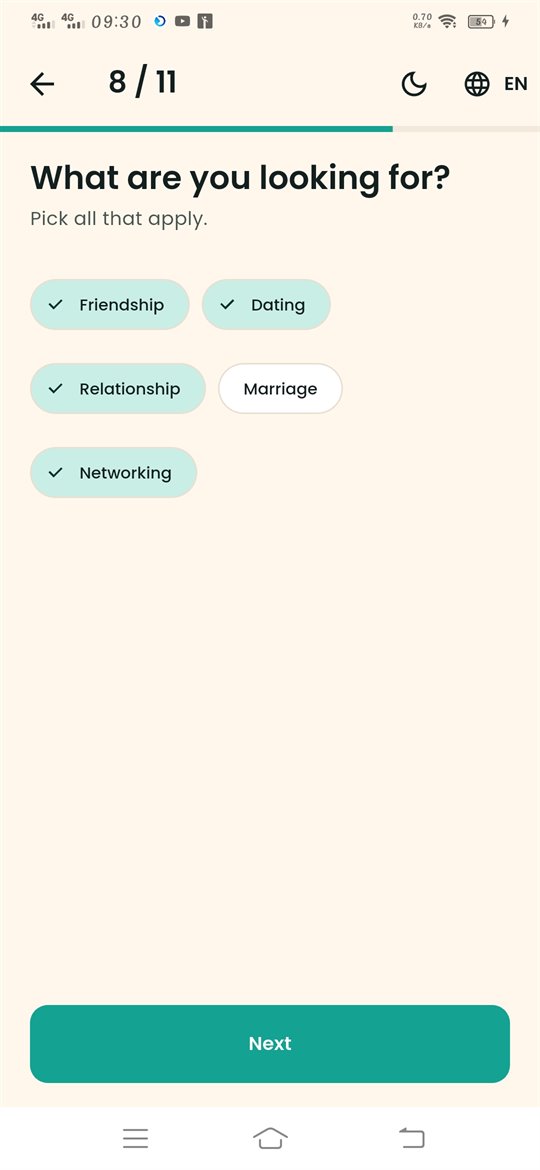
Pick all that apply – e.g. friendship, relationship, marriage.
20 Your interests
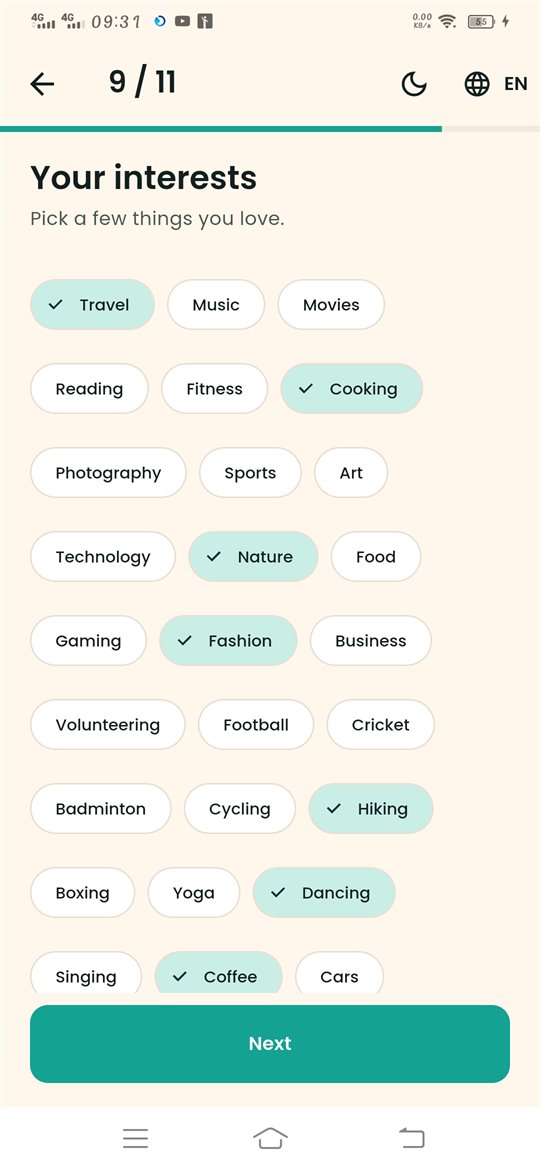
Pick the things you love (up to 10).
21 Your preferences
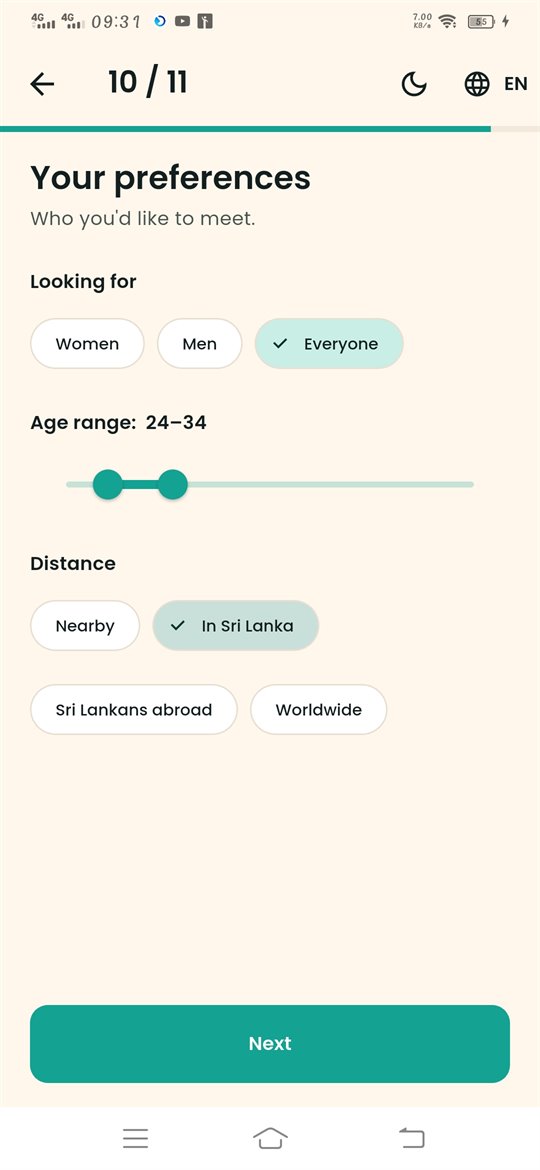
Choose who you want to meet, age range and distance.
22 You're all set!
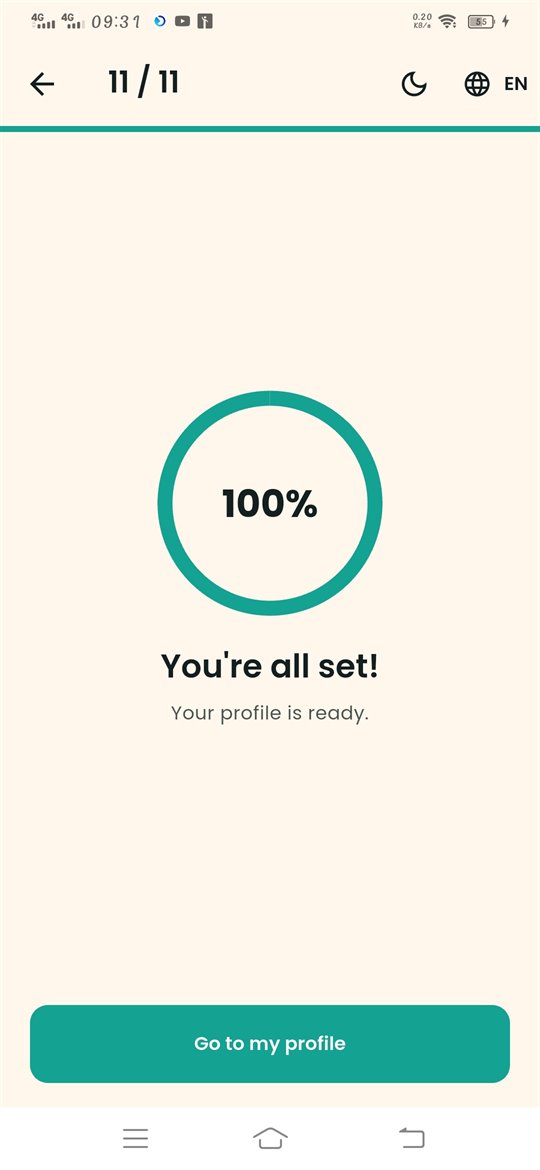
Your profile is ready. Tap Go to my profile.
23 Start matching
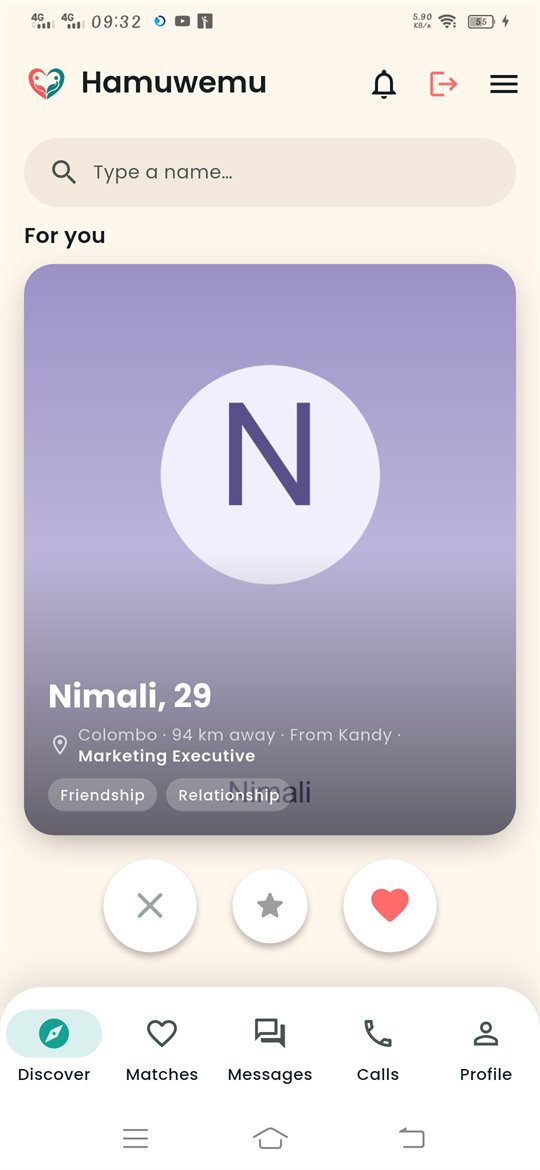
Tap ❤️ to like or ✕ to pass. Enjoy Hamuwemu!
Tip: Change the app language
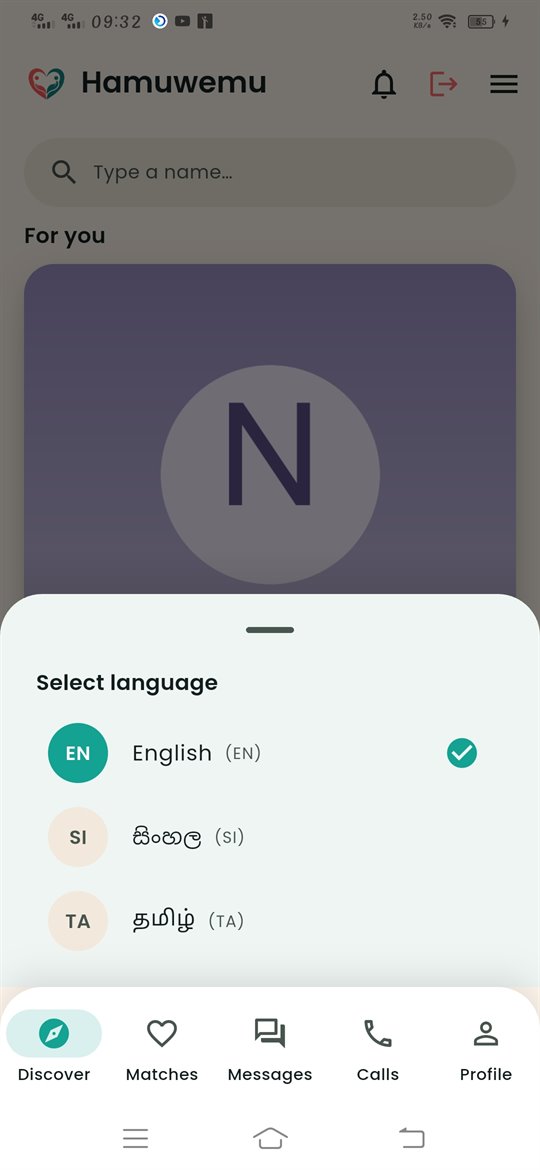
Tap the menu ☰ → “Select language” → choose සිංහල or தமிழ்.
Verified Profiles • Private Number • Safe Chat
Voice & Video Calls • Report & Block


